Hosting your Podcast on the Internet Archive archive.org and @Glitch
Many educators caught the podcast bug. In fact, edtechtalk, launched in 2006, is probably one of the oldest continuous podcast networks around.
We know the power of broadcasting truth, reflecting on knowledge, questioning power, and having fun with media. Kind of our job as teachers
Yet hosting a podcast and getting it registered may seem overwhelming. I want to reduce this friction by providing you solutions host your podcast and build a podcast page so it shows up in your Android podcast catcher (it set up for the fruit folks too).
Hosting on Internet Archive
As a teacher, if you openly license your material you can host your podcast for free on the Internet Archive.
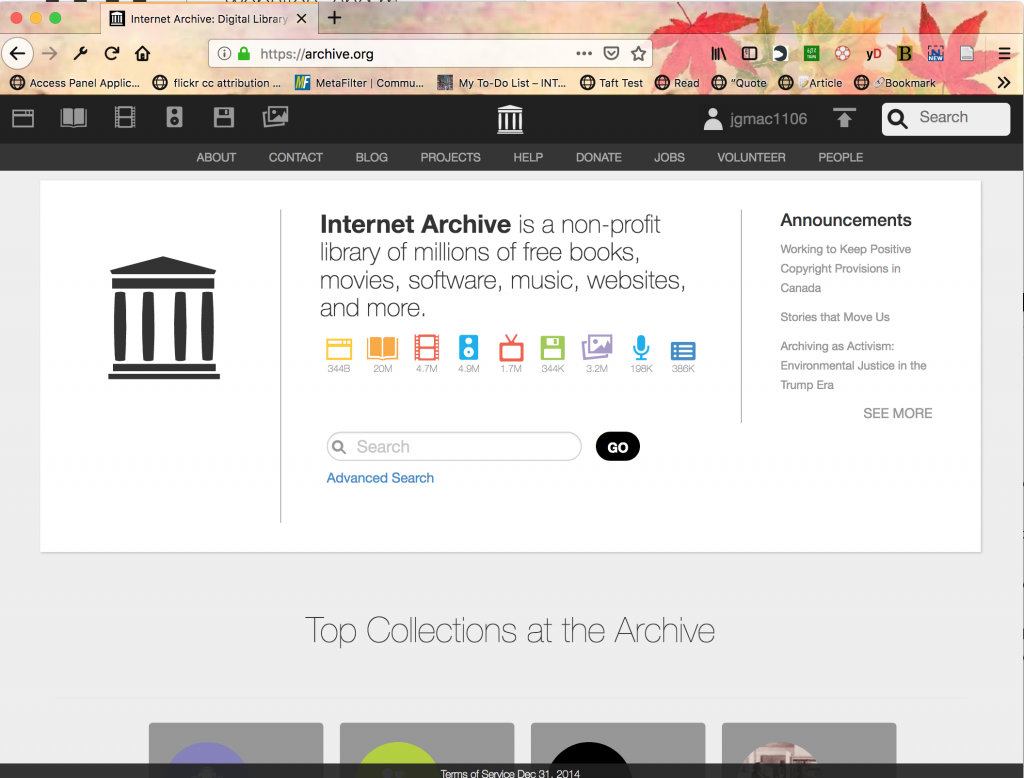
The first step is to go to archive.org and make an account. Then you can hit the upload arrow in the upper right hand corner. It is the arrow under the bar next to your screenname.
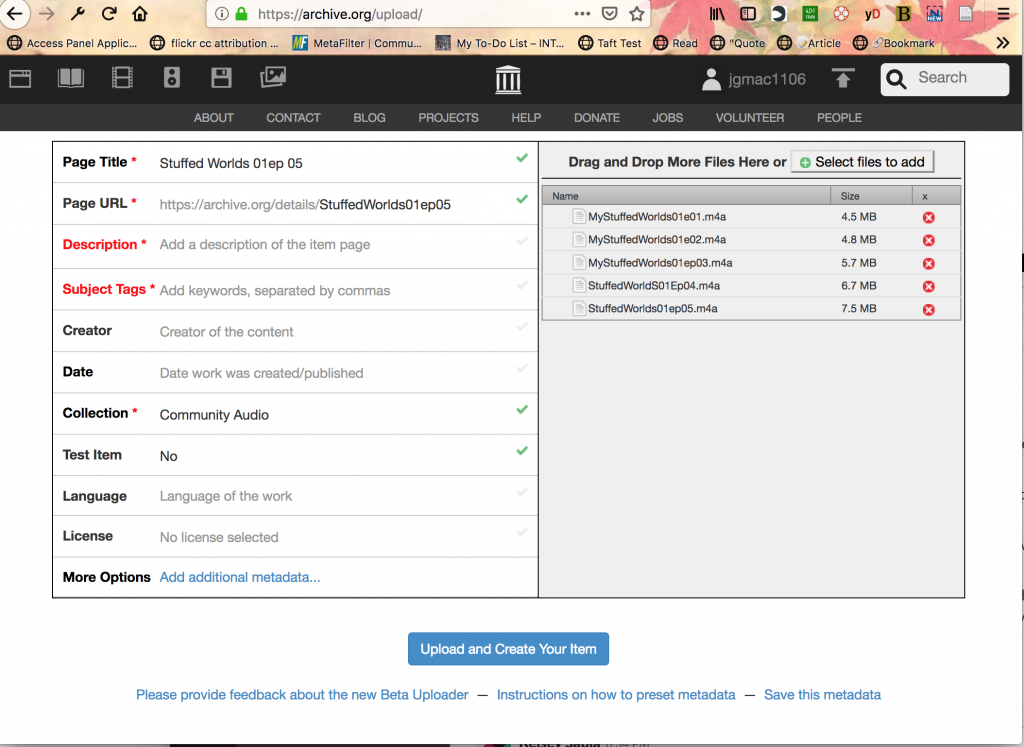
You then go to select your files to upload. They will then appear on the ride side and you will need to edit your item on the right.
The Interner Archive considers each item to be a webpage. Each item can have multiple files in it. You are making one item for all the episodes of your show.
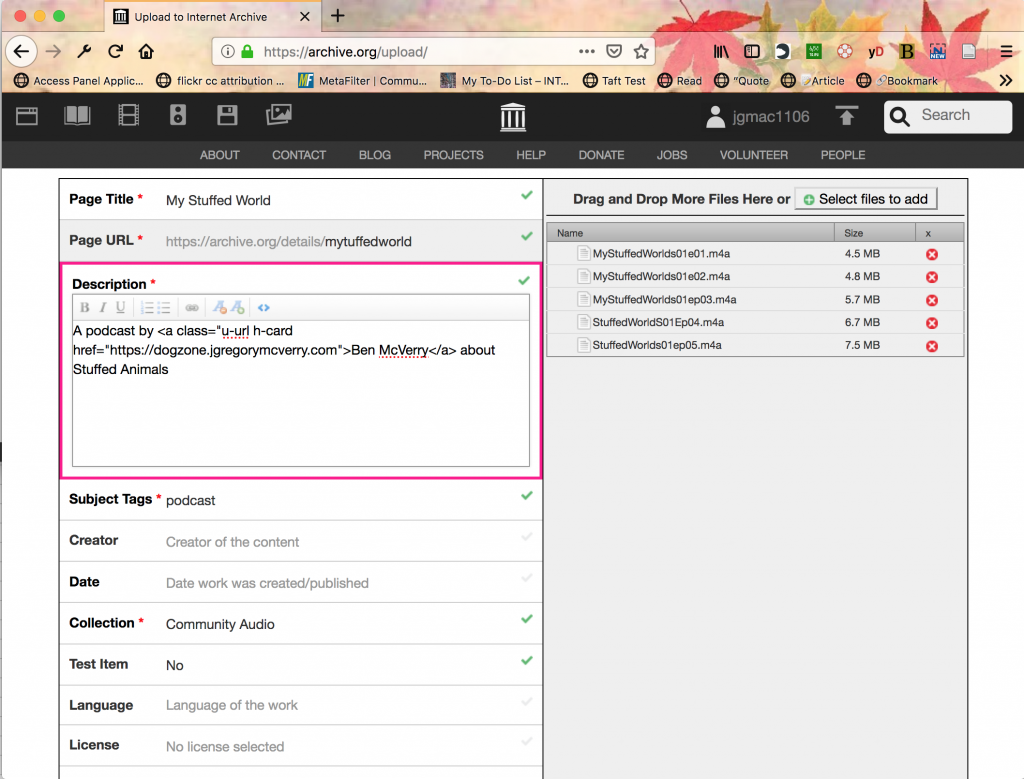
The page title will default to the first file name. You do not want that as your show title. Make sure to change that and the page url...Don't make the mistake I made and incorrectly type your url. Stuck with that one forever (unless you start over).
You can then add a description. The box had an HTML view so I through in an h-card for good measure..Just describe your show, I think all the HTML gets stripped anyways.
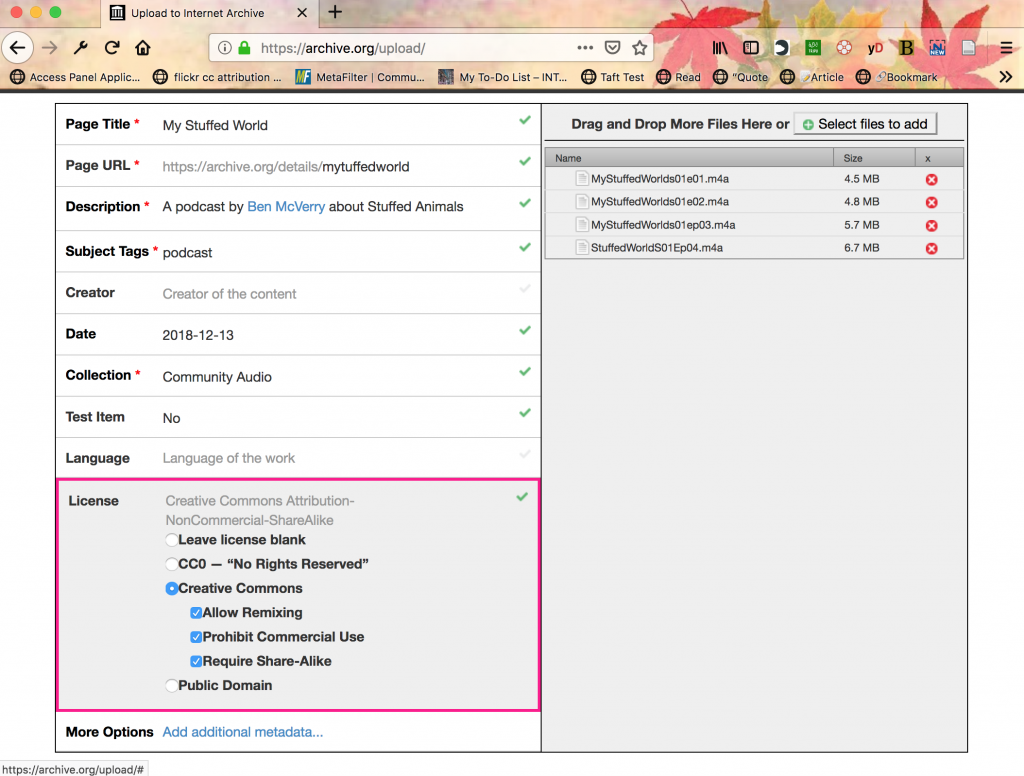
After you enter in the date select the license for your show. In order to post your files on the Internet Archive, you can not include any copyrighted work in the file...and no the filters will not care about your fair use argument. I know teachers get more coverage than most but just stick to content you know you can share.
The license picker provides you with choices and allows you to determine how to share your work. I usually just use CC-BY-SA but this is my son's podcast so I went stricter.
Press publish and you are done.
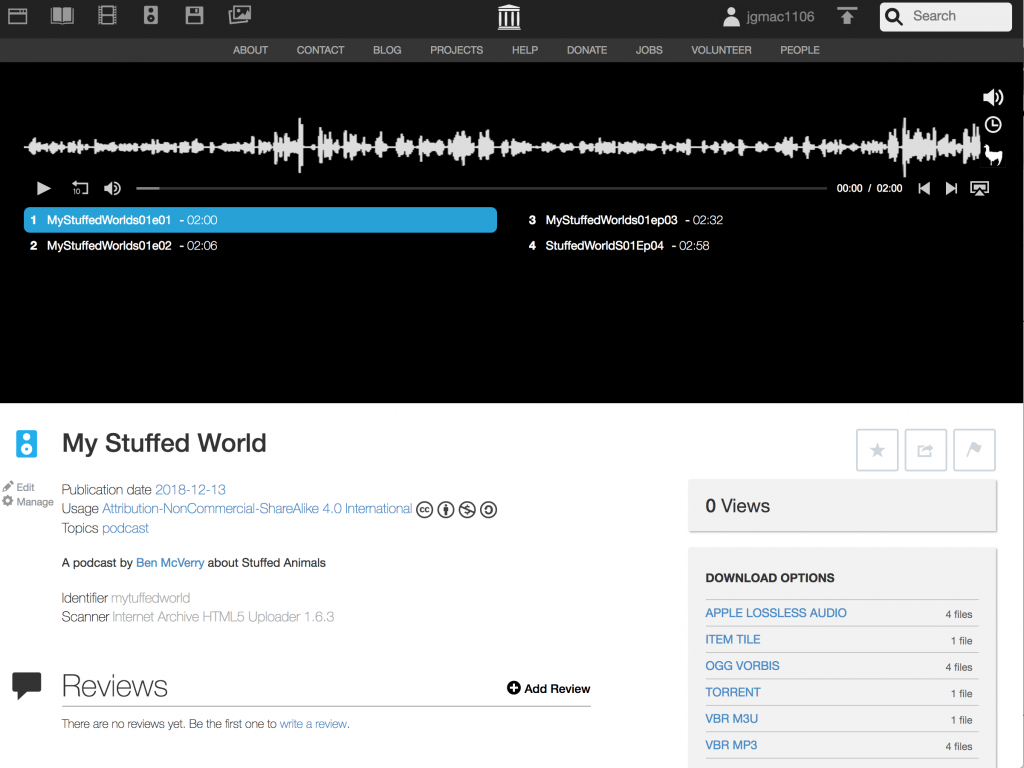
Adding File to Existing Item
The new uploader is in beta and it shows when you want to add a file to an existing item. You actually have to enable Flach so at this point I switched from Firefox to Chrome.
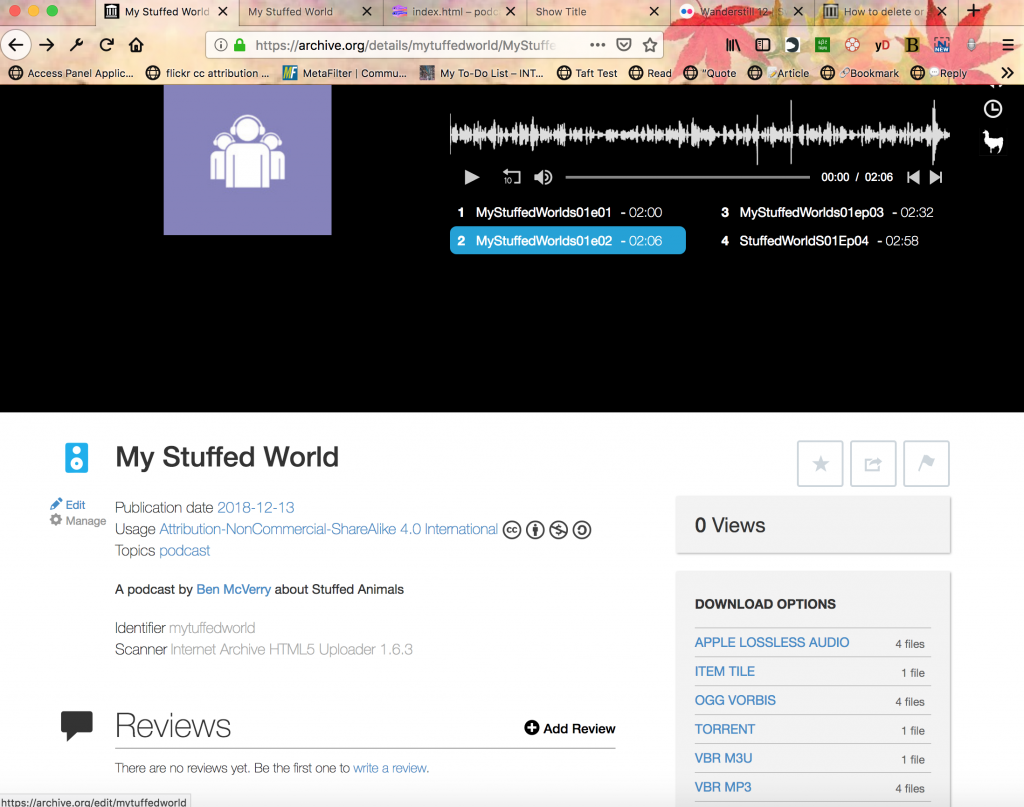
First navigate to the webpage of your item when you are signed in. Click on the edit button under the speaker icon next to your show title.
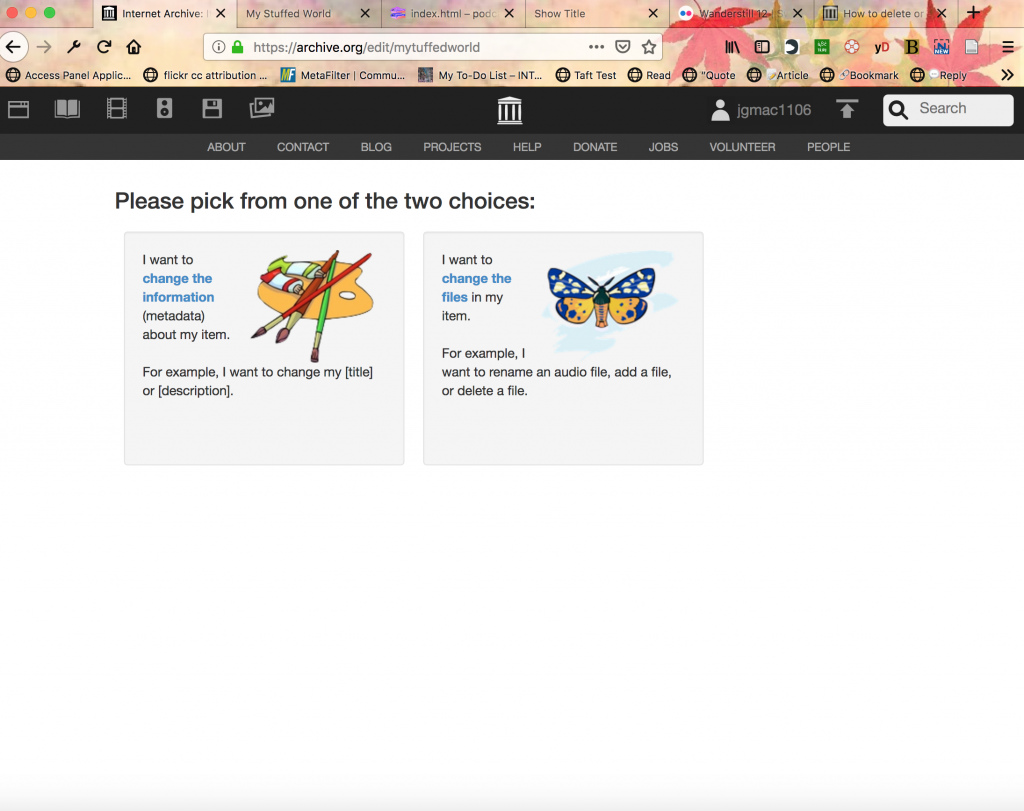
Then click on the change file. That will load the screen below. At this point, I had to use Flash which meant switching over to Chrome.
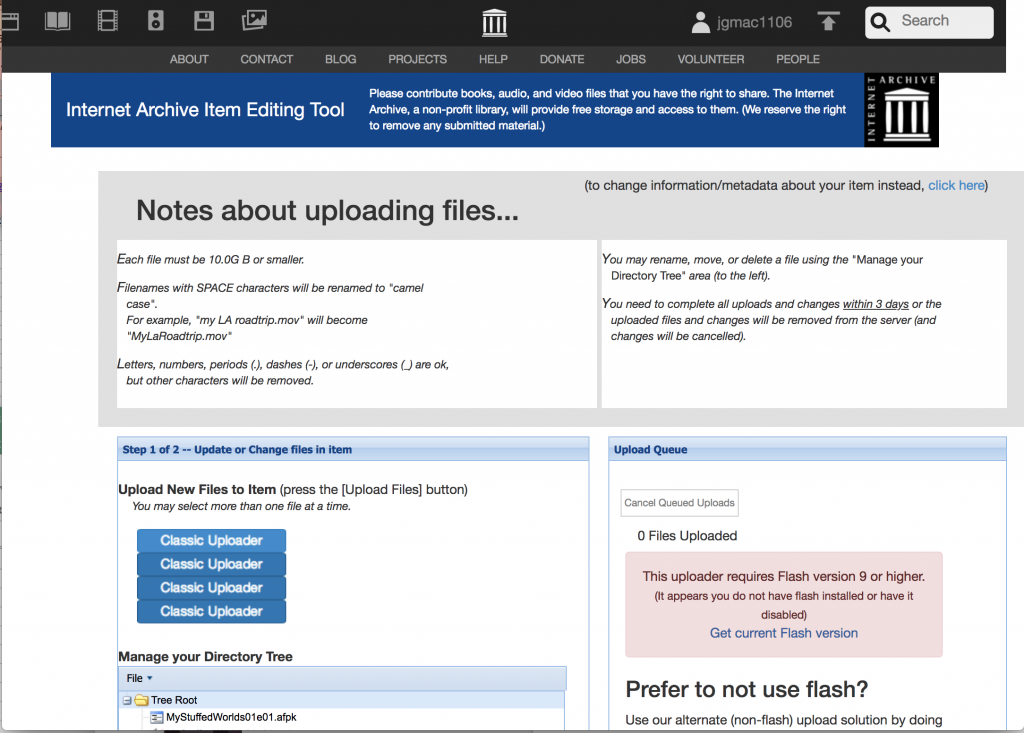
In Chrome you will be able to enable Flash by clicking on the button in the "Upload Queue" in the right box next to step one.
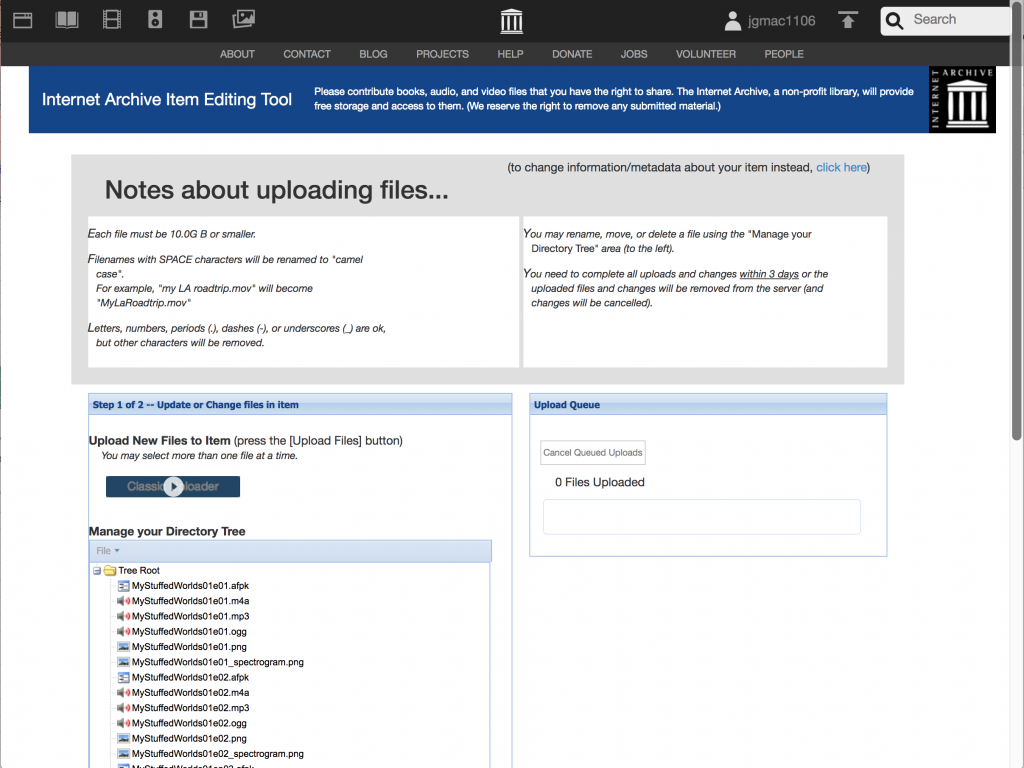
Then navigate to your file. Once you upload the file make sure to scroll down to step two and select update. It may take sometime for the new show to appear on the list.
Making A PodCast Website
The next step you need to do is create a podcast website. Now I make every episode it's own post on my blog so I can collect comments and you can easily use an entire blog and have a website for a podcast but I keep it simpler.
I host episodes on my website and make one static page for the Podcast show.
You have to have a dedicated url for the show if you want people to find your show using the podcast feed app of their choice.
I made a very simple example you can remix on Glitch. You do not need to know any HTML/CSS, but I can't lie it helps.
Here is the site.
This template is designed for you to create a website with a podcast. It is set up with an h-feed in the HTML and also has an Apple-compliant XML file that you will need to host your podcast on Itunes. This feed will work with any other podcasting app as well.
The page also uses CSS Grid to display the current episode in a large box and previous episodes in descending order.
This also assumes you are using Internet archive to host openly licensed material but you can use any audio hosting service.
Just figure out how to get the link to the media file.
Step One
- Name your show.
- In line 19 add a show title. Make sure it is in the h-feed div
- Then you need to add your information to your h-card. An h-card is like a business card for the web. You put your name and website and other information you want to add into it.
- Finally, add a summary to your show
Step Two
- Add First Show
- Each show is contained in an h-entry
- Add your name, time of publication, episode title and summary
- If you have a page for each episode for comments add that link
- Now add the media file
- Go to your inernet archive page and add click on the file
- Copy the link
- Replace https://archive.org/details/mytuffedworld/StuffedWorlds01ep05.m4a with http://www.archive.org/download switching detail for download
- Add any show notes
Step Three
- Add item to XML file
- click on the file feed.xml
- addd in yoru show details
- Please note you must choose pre-existing categories from iTunes
- Add a new item
Step Four
- Add yourself to the podcast readers of your choice.
Step Five
- Add an additional show
- This show uses an explicit CSS grid for layout.
- To add a new show you just copy and paste the h-entry for a previous unfeatured show
- Then move the featured show to the copy and pasted h-entry
- Add your new show the featured show (podbox e)
- Now adjust the letters in the past shows in reverse chronological order f becomes g, g becomes h, etc
- A auto grid would have made more sense but I am CSS Grid and won't use anythign I do not fully understand yet.